
Tag: books

  • Best Webcams for Online Classes, Meetings and Work From Home in India

    Best Webcams for Online Classes, Meetings and Work From Home in India

    A good webcam can improve video quality during online classes, office meetings, interviews, training sessions and remote work. While many laptops include built-in cameras, the quality may not always be sufficient for clear communication.

    An external webcam can provide better image quality, improved positioning and, in some cases, better microphones and low-light performance.

    In this guide, we will look at the main features to consider when choosing a webcam in India.

    1. Video Resolution

    Video resolution is one of the first features to check.

    For most online classes and office meetings, Full HD 1080p is usually sufficient. Lower-resolution webcams may still work for basic calls, while higher-resolution models may be useful for content creation or professional presentations.

    Keep in mind that video quality also depends on lighting, internet speed and the video conferencing platform being used.

    2. Frame Rate

    Frame rate affects how smooth the video appears.

    Many webcams support 30 frames per second, which is adequate for normal meetings and classes. Higher frame rates can make movement look smoother, but they may also require more bandwidth and processing power.

    For most students and office users, stable 1080p video at 30 fps is generally enough.

    3. Built-In Microphone

    Some webcams include one or more microphones.

    A built-in microphone can be convenient for basic calls, but microphone quality varies significantly between models.

    If clear voice communication is very important, an external headset or dedicated microphone may provide better results.

    Before buying, check whether the webcam microphone includes features such as noise reduction or stereo recording.

    4. Low-Light Performance

    Not everyone works in a brightly lit room.

    A webcam with good low-light performance can help maintain clearer video when lighting conditions are not ideal.

    Some webcams automatically adjust brightness and exposure based on the room.

    However, even a good webcam performs better with proper lighting. A simple desk lamp or natural light from a window can significantly improve video quality.

    5. Autofocus vs Fixed Focus

    Autofocus webcams automatically adjust focus when you move closer to or farther away from the camera.

    This can be useful for presentations, demonstrations and professional calls.

    Fixed-focus webcams are simpler and may work well when the user remains at a consistent distance from the camera.

    For normal online classes and meetings, either option may be suitable depending on your needs.

    6. Field of View

    Field of view determines how much of the room or workspace appears in the video.

    A narrower field of view is suitable for individual video calls because it keeps attention on the user.

    A wider field of view may be useful for training sessions, group meetings or presentations where more than one person needs to appear on screen.

    Choose a field of view that matches your normal use.

    7. Mounting and Positioning

    A webcam should be easy to position securely.

    Most webcams include a clip that attaches to the top of a laptop or monitor. Some models also include a tripod mounting point.

    Check whether the webcam can be tilted or adjusted easily so that the camera is positioned close to eye level.

    Good positioning can improve video appearance even without changing the webcam itself.

    8. Privacy Features

    Privacy is important when using a webcam regularly.

    Some webcams include a built-in privacy shutter or removable lens cover. This allows the camera lens to be physically covered when it is not in use.

    If the webcam does not include one, an external privacy cover may be used as long as it does not interfere with the camera.

    9. USB Compatibility

    Most external webcams connect through USB.

    Before buying, check whether the webcam uses USB-A or USB-C and whether your laptop has the required port.

    Many webcams are plug-and-play and work without additional drivers, but compatibility with Windows, macOS or other operating systems should still be verified.

    10. Webcam for Students

    Students usually need a webcam for online classes, interviews, group discussions and presentations.

    A simple 1080p webcam with a reliable microphone and easy mounting system is often sufficient.

    Students should also consider affordability, portability and compatibility with commonly used platforms such as Google Meet, Microsoft Teams and Zoom.

    11. Webcam for Office Work

    Professionals may spend several hours each week in video meetings.

    For office use, image quality, autofocus, low-light performance and microphone clarity become more important.

    A webcam with reliable performance and good positioning can make online meetings appear more professional.

    12. Webcam for Trainers and Teachers

    Trainers and teachers may need to show documents, demonstrations or a larger part of the room.

    A wider field of view, adjustable mounting and good autofocus can be useful in these situations.

    An external microphone may also be helpful when conducting longer training sessions.

    What to Check Before Buying

    Before purchasing a webcam, compare:

    • Video resolution
    • Frame rate
    • Microphone quality
    • Autofocus
    • Low-light performance
    • Field of view
    • Mounting options
    • Privacy shutter
    • USB compatibility
    • Operating system support
    • Warranty
    • Recent customer reviews

    Choose features according to how frequently you use video calls and the type of work you perform.

    Conclusion

    A webcam can improve communication during online classes, meetings, interviews, training and remote work. For most users, a reliable Full HD webcam with good lighting performance and convenient mounting will be sufficient.

    Before buying, compare specifications, compatibility, warranty information and recent customer reviews. A suitable webcam should provide clear video without requiring unnecessary features that increase the price.

    Affiliate Disclosure: Some links in this article may be affiliate links. If you make a qualifying purchase through these links, Chrisolas Solutions may earn a commission at no additional cost to you. As an Amazon Associate, Chrisolas Solutions earns from qualifying purchases.
  • Best Laptop Stands for Students and Professionals in India

    Best Laptop Stands for Students and Professionals in India

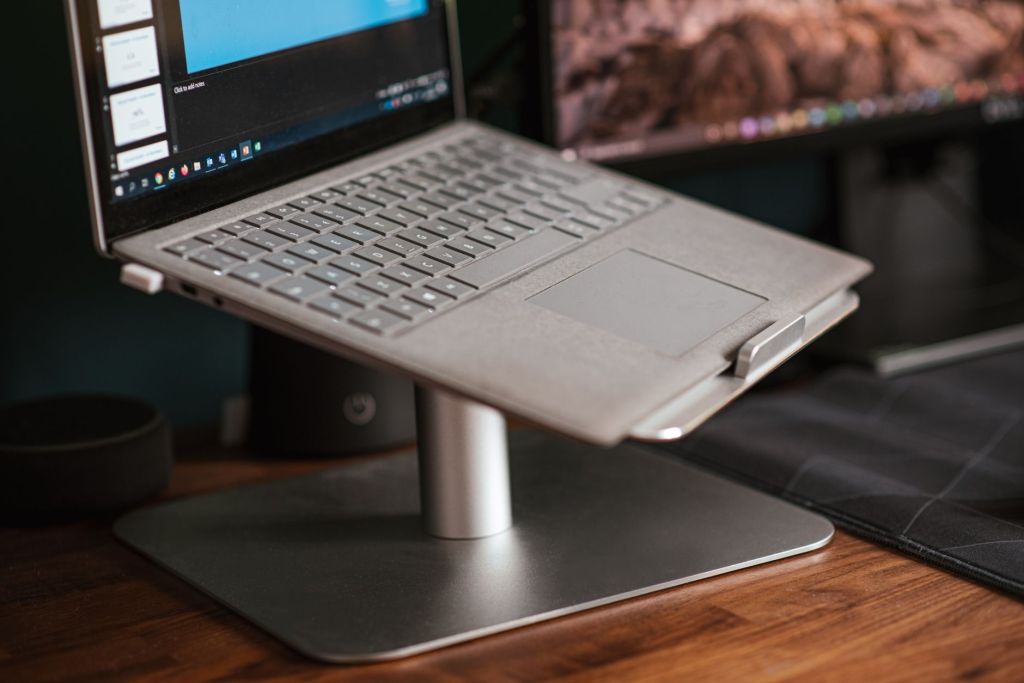
    A laptop stand can make studying and working more comfortable by raising the laptop screen to a better viewing height. It can also create more space on the desk and may improve airflow around the laptop.

    Students, office workers, trainers and people working from home may spend several hours each day using a laptop. Choosing a suitable stand can therefore improve comfort and make the workspace more organised.

    In this guide, we will look at the important features to consider when choosing a laptop stand in India.

    1. Why Use a Laptop Stand?

    When a laptop is placed directly on a desk, the screen may be lower than a comfortable viewing position. This can encourage users to bend their neck or lean forward while working.

    A laptop stand raises the device and can help position the screen closer to eye level. When combined with an external keyboard and mouse, it can create a more comfortable desktop-style setup.

    A stand can also provide additional airflow beneath the laptop, depending on its design.

    2. Adjustable Height and Viewing Angle

    An adjustable laptop stand allows users to change the height and angle of the laptop according to their seating position and desk.

    This can be useful when the same stand is used by different people or in different locations such as a home desk, office, classroom or training room.

    When choosing an adjustable stand, check whether the adjustment mechanism is stable and whether the laptop remains secure at the selected position.

    3. Laptop Size Compatibility

    Laptop stands are designed to support different screen sizes and weights.

    Before buying, check the manufacturer’s recommended laptop size range. A stand designed for smaller laptops may not provide enough stability for a larger or heavier device.

    Also check whether the support arms and base allow the laptop to sit securely without blocking important ports.

    4. Stability and Build Quality

    A laptop stand should remain stable while typing, adjusting the screen or connecting accessories.

    Metal stands are often strong and may help with heat dissipation, while good-quality plastic stands can be lighter and easier to carry.

    Look for non-slip pads on the base and laptop supports. These can help prevent the stand from sliding and protect the laptop from scratches.

    5. Ventilation and Cooling

    Laptops generate heat during use, especially when running demanding software, video calls or multiple applications.

    An open-frame laptop stand can improve airflow around the bottom of the laptop compared with placing it directly on a soft surface.

    However, a laptop stand should not be considered a replacement for proper laptop cooling or maintenance. Keep ventilation openings clean and avoid blocking the laptop’s air vents.

    6. Portable Laptop Stands

    Students and professionals who frequently travel may prefer a lightweight, foldable laptop stand.

    Portable stands can fit into a laptop bag and can be useful in libraries, classrooms, offices, hotels and shared workspaces.

    When choosing a portable stand, compare its folded size, weight and stability. Very lightweight designs may be convenient to carry but should still provide adequate support for the laptop.

    7. Laptop Stands for Home and Office Desks

    For a permanent desk setup, stability and comfort may be more important than portability.

    A larger metal stand can provide a stable platform and may create additional space underneath the laptop for a keyboard, notebook or other accessories.

    Users who regularly work with an external monitor may also use a laptop stand to position the laptop screen at a similar height to the monitor.

    8. Foldable vs Fixed Laptop Stands

    Foldable stands provide flexibility because they can usually be adjusted and stored easily. They are suitable for users who travel or frequently change work locations.

    Fixed stands generally provide a simpler and more stable setup but may offer fewer adjustment options.

    The right choice depends on whether portability, adjustability or maximum stability is more important to you.

    9. Using an External Keyboard and Mouse

    When a laptop is raised significantly above desk level, typing directly on its keyboard may become uncomfortable.

    For this reason, an external keyboard and mouse can be useful when using a laptop stand for long periods.

    This setup allows the laptop screen to remain elevated while the keyboard and mouse stay at a comfortable position on the desk.

    10. What to Check Before Buying

    Before purchasing a laptop stand, consider:

    • Laptop size and weight compatibility
    • Adjustable height and viewing angles
    • Stability
    • Build quality
    • Non-slip protection
    • Ventilation
    • Portability
    • Foldable design
    • Desk space
    • Warranty and customer support

    It is also useful to read recent customer reviews to understand how the stand performs during regular use.

    Which Laptop Stand Should You Choose?

    Students who frequently carry their laptops may prefer a lightweight and foldable stand.

    Professionals working from a fixed desk may prefer a stronger metal stand with greater stability and height adjustment.

    People working from home for long hours may benefit from an adjustable stand combined with an external keyboard and mouse.

    The best choice is the one that matches your laptop size, workspace and daily usage.

    Conclusion

    A laptop stand is a simple accessory that can make a study or work setup more comfortable and organised. Features such as height adjustment, stability, laptop compatibility, ventilation and portability should be considered before purchasing.

    Rather than choosing only by appearance or price, compare the stand with your laptop size and the way you normally work. A stable and practical stand can be useful for students, professionals and work-from-home users alike.

    Affiliate Disclosure: Some links in this article may be affiliate links. If you make a qualifying purchase through these links, Chrisolas Solutions may earn a commission at no additional cost to you. As an Amazon Associate, Chrisolas Solutions earns from qualifying purchases.

  • Best USB Hubs for Laptops in India: What Students and Professionals Should Look For

    Best USB Hubs for Laptops in India: What Students and Professionals Should Look For

    Modern laptops often come with only a few ports, which can become inconvenient when you need to connect a mouse, keyboard, external storage device, monitor, memory card or other accessories at the same time.

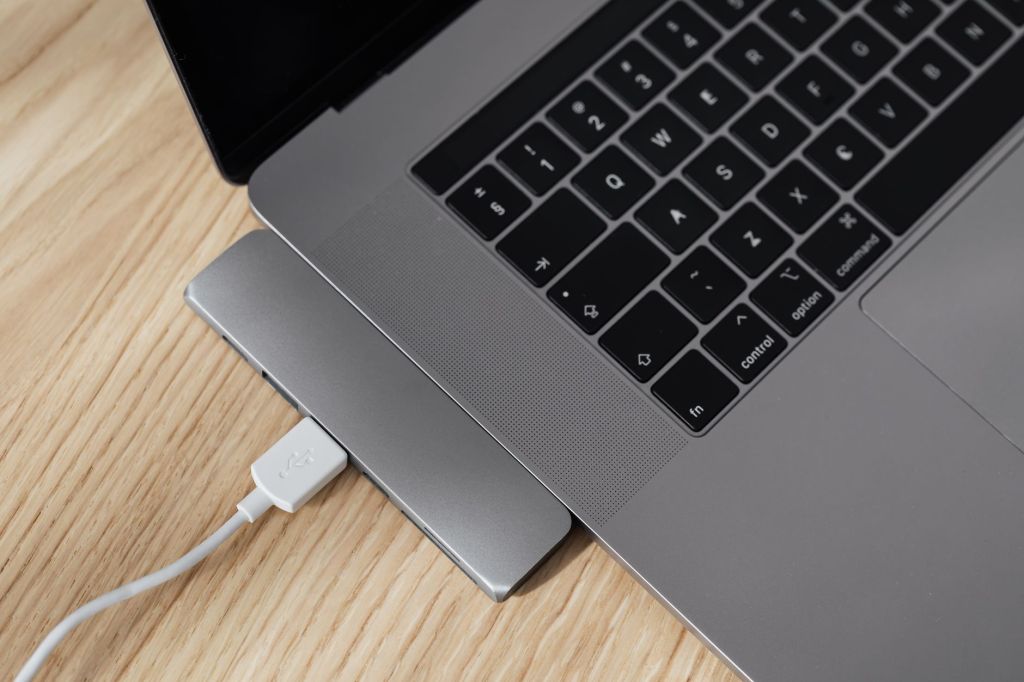
    A USB hub can solve this problem by adding extra connectivity through a single laptop port. However, different hubs support different combinations of USB, HDMI, Ethernet, memory card and charging connections.

    In this guide, we will look at the important features to consider when choosing a USB hub for students, professionals and work-from-home users in India.

    1. Number and Type of Ports

    The first thing to check in a USB hub is the number and type of ports it provides. Some hubs offer only additional USB-A ports, while others may include USB-C, HDMI, Ethernet, SD card and microSD card connections.

    Students may only need a few extra USB ports for a mouse, keyboard or storage device. Professionals may prefer a multi-port hub that can connect a monitor, network cable, memory card and other accessories at the same time.

    Before buying, check which ports your laptop already has and choose a hub that adds the connections you actually need.

    2. USB-A vs USB-C Compatibility

    Before choosing a USB hub, check whether your laptop uses a USB-A port, a USB-C port or both. Many newer laptops rely more heavily on USB-C, while older models may still use traditional USB-A ports.

    A USB-C hub can be especially useful because a single connection may support data transfer, video output and charging, depending on the laptop and hub. However, not every USB-C port supports all of these features, so compatibility should be checked carefully.

    Choose a hub that matches your laptop’s available ports and the devices you plan to connect.

    3. Data Transfer Speed

    USB hubs can support different data transfer speeds depending on the USB standard they use. This becomes important when transferring large files, using external SSDs or connecting other high-speed storage devices.

    For basic accessories such as a keyboard, mouse or printer, very high transfer speeds may not be necessary. But for external drives, video files and regular backups, a faster USB 3.x or USB-C hub can save time.

    Before buying, check the advertised data transfer speed of the hub and make sure your laptop port also supports that speed.

    4. HDMI and Display Support

    Some USB hubs include an HDMI port that allows you to connect a laptop to an external monitor, television or projector. This can be useful for presentations, online teaching, office work and creating a larger desktop workspace.

    Before buying, check the maximum supported resolution and refresh rate. A hub may support Full HD, 4K or higher output, but your laptop’s USB-C port must also support video output for HDMI through the hub to work.

    If you plan to use the hub for presentations or an external monitor, confirm both the laptop and hub specifications before purchasing.

    5. Ethernet Port

    Some USB hubs include an Ethernet port, which can be useful when you need a more stable wired internet connection. This is especially helpful for online meetings, remote work, large file transfers and situations where Wi-Fi is weak or unreliable.

    Before choosing a hub with Ethernet, check the supported network speed, such as 100 Mbps or 1 Gbps, and confirm that your laptop and internet connection can take advantage of that speed.

    For professionals who frequently work from offices, hotels or shared workspaces, an Ethernet-enabled hub can be a practical addition.

    6. SD and microSD Card Readers

    Some USB hubs include built-in SD and microSD card slots, which can be useful for transferring photos, videos and other files from cameras, smartphones and memory cards.

    Students, content creators and professionals who regularly work with media files may find this especially convenient because it reduces the need to carry a separate card reader.

    Before buying, check which card formats are supported and whether the hub allows reliable and reasonably fast file transfers.

    7. Power Delivery and Charging Support

    Some USB-C hubs support Power Delivery, which allows the laptop to receive power through the hub while other accessories are connected at the same time. This can be useful when a laptop has only one or two USB-C ports.

    Before buying, check the maximum charging wattage supported by the hub and compare it with your laptop charger requirements. A hub that supports lower wattage than your laptop needs may charge slowly or may not provide enough power during heavy use.

    It is also important to confirm that both the laptop and the USB-C port support Power Delivery before relying on this feature.

    8. Build Quality and Portability

    A USB hub is often carried together with a laptop, so build quality and portability are important. A compact hub with a strong casing and well-fitted ports is easier to use during travel, college, office work or remote work.

    Metal-bodied hubs may provide better durability and heat handling, while lightweight plastic models can be easier to carry. Cable length also matters because a very short cable may be inconvenient depending on where the laptop ports are located.

    Choose a hub that feels sturdy, is easy to carry and has enough space between ports for the accessories you plan to connect.

    9. Safety and Compatibility

    A USB hub should work reliably without causing connection problems, overheating or power issues. Poor-quality hubs may disconnect devices unexpectedly or fail to support certain accessories properly.

    Before buying, check compatibility with your laptop’s operating system and ports. If the hub supports charging, HDMI output or Ethernet, make sure those functions are supported by your laptop as well.

    It is also wise to choose products from reputable brands and review warranty information, safety certifications and recent customer feedback before purchasing.

    10. Choosing the Right USB Hub for Your Needs

    The best USB hub depends on how you use your laptop. Students may only need a few extra USB ports and a card reader, while office users may benefit from HDMI, Ethernet and charging support. Professionals who use several accessories at once may prefer a multi-port USB-C hub with faster data transfer.

    Before buying, list the devices you regularly connect and choose a hub that provides the required ports without paying for features you may never use. Also check compatibility, transfer speed, charging support, warranty information and recent customer reviews.

    Conclusion

    A USB hub can make a laptop more useful by adding the ports needed for accessories, displays, storage devices, memory cards and wired networking. The best choice depends on your laptop’s ports and the devices you regularly connect.

    Before purchasing, compare port types, transfer speeds, charging support, display capabilities, build quality, compatibility and warranty information. Choosing a hub based on actual needs is usually better than paying extra for features you may not use.

    Affiliate Disclosure: Some links in this article may be affiliate links. If you make a qualifying purchase through these links, Chrisolas Solutions may earn a commission at no additional cost to you. As an Amazon Associate, Chrisolas Solutions earns from qualifying purchases.

  • Best Laptop Accessories for Students and Professionals in India

    Best Laptop Accessories for Students and Professionals in India

    Choosing the right laptop accessories can make studying, working and attending online meetings much easier. Students and professionals often need simple tools that improve comfort, productivity, connectivity and device protection.

    In this guide, we will look at useful laptop accessories that can help with everyday study, office work, online classes, presentations and remote work.

    1. Laptop Stand

    A laptop stand raises the screen to a more comfortable viewing height and can help improve posture while studying or working for long periods. It can also improve airflow around the laptop, which may help with cooling.

    When choosing a laptop stand, look for a stable design, adjustable height, good ventilation and compatibility with your laptop size.

    2. Wireless Mouse

    A wireless mouse can make laptop use more comfortable and convenient, especially during long study or work sessions. It is also useful when working with spreadsheets, presentations, design tools or multiple browser tabs.

    When choosing a wireless mouse, consider comfort, battery life, connectivity, portability and whether the size suits your hand.

    3. Laptop Sleeve or Protective Bag

    A laptop sleeve or protective bag helps protect the laptop from scratches, dust and minor impacts while travelling between home, college, office or training locations.

    Choose a sleeve or bag that fits your laptop size properly and provides adequate padding. Extra compartments for the charger, mouse, documents and accessories can also be useful for daily travel.

    4. USB Hub

    A USB hub is useful when a laptop has only a few ports or when several accessories need to be connected at the same time. It can provide extra USB ports and, depending on the model, may also include HDMI, memory card, Ethernet or charging connections.

    When choosing a USB hub, check the number and type of ports, compatibility with your laptop, data-transfer speed and build quality.

    5. External Keyboard

    An external keyboard can make long typing sessions more comfortable, especially when a laptop is placed on a stand. It is useful for students preparing assignments, professionals working with documents and anyone who spends several hours typing each day.

    When choosing an external keyboard, consider key comfort, size, wireless or wired connectivity, battery life and whether you need additional features such as a numeric keypad or shortcut keys.

    6. Headphones or Headset

    A good pair of headphones or a headset can improve concentration during online classes, meetings, training sessions and remote work. A headset with a built-in microphone is especially useful for video calls and online communication.

    When choosing headphones or a headset, consider comfort, sound quality, microphone clarity, wired or wireless connectivity and battery life if you choose a wireless model.

    7. Webcam

    A webcam can improve video quality during online classes, interviews, meetings, training sessions and remote work. It is especially useful when the built-in laptop camera is not clear enough or when you want a better camera angle.

    When choosing a webcam, consider video resolution, microphone quality, low-light performance, mounting options and compatibility with your laptop and video conferencing applications.

    8. Power Bank or Laptop-Compatible Portable Charger

    A power bank or portable charger can be useful when you need to work, study or attend online sessions away from a power socket. Some high-capacity models can also support laptops through USB-C Power Delivery, provided the laptop and charger are compatible.

    When choosing one, check the battery capacity, output wattage, USB-C Power Delivery support, number of ports, safety certifications and compatibility with your laptop or mobile devices.

    9. External Storage Device

    An external storage device is useful for backing up assignments, work files, photos, videos and important documents. It can also help when transferring large files between devices or when the laptop’s internal storage is limited.

    When choosing external storage, consider whether you need an external hard drive, SSD or USB flash drive. Check storage capacity, transfer speed, portability, durability and compatibility with your laptop.

    10. Laptop Cleaning Kit

    A laptop cleaning kit helps keep the screen, keyboard and outer surfaces clean and free from dust. Regular cleaning can improve comfort while using the laptop and help maintain the device’s appearance.

    When choosing a cleaning kit, look for a soft microfiber cloth, screen-safe cleaning solution, keyboard brush and other tools designed specifically for electronic devices.

    Conclusion

    The right laptop accessories can improve comfort, productivity, portability and everyday convenience. Students may prioritise affordable and portable accessories, while professionals may prefer products that improve ergonomics, connectivity and work efficiency.

    Before buying any accessory, check compatibility with your laptop, current product specifications, warranty information, customer reviews and price.

    As Chrisolas Solutions begins publishing product recommendations, we will highlight useful options for different budgets and requirements.

    Affiliate Disclosure: Some links in this article may be affiliate links. If you make a qualifying purchase through these links, Chrisolas Solutions may earn a commission at no additional cost to you. As an Amazon Associate, Chrisolas Solutions earns from qualifying purchases.